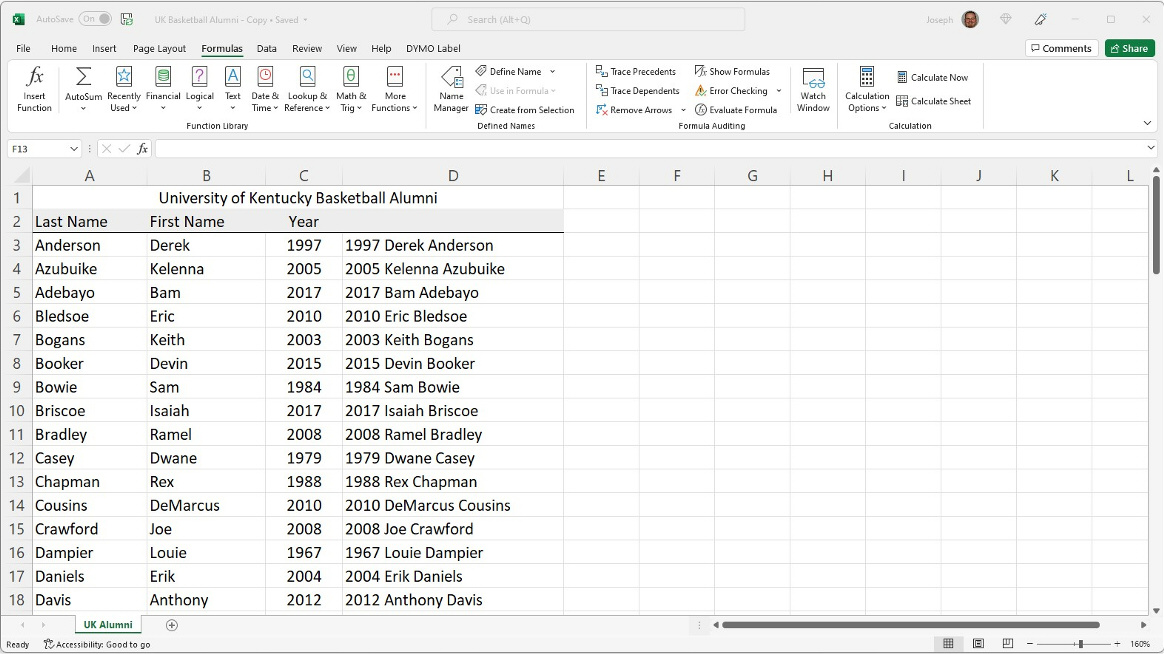
 #001-EXCEL: CONCATENATE (or CONCAT) Use the CONCATENATE function in a spreadsheet. Description: This task will demonstrate how you can join three text strings into one text string. (The Nuts&Bolts) Step Instructions: Step One - Download the (CONCATENATE) sample template for this task: (Here)
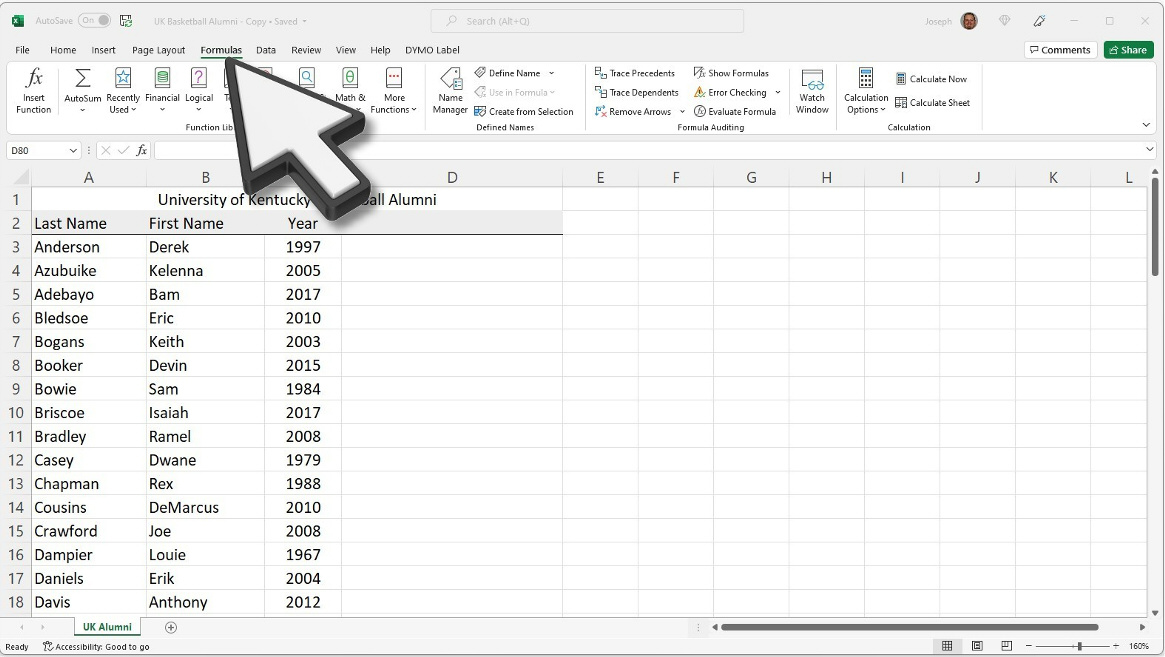
Step Two - Open the template and click on the formulas tab.
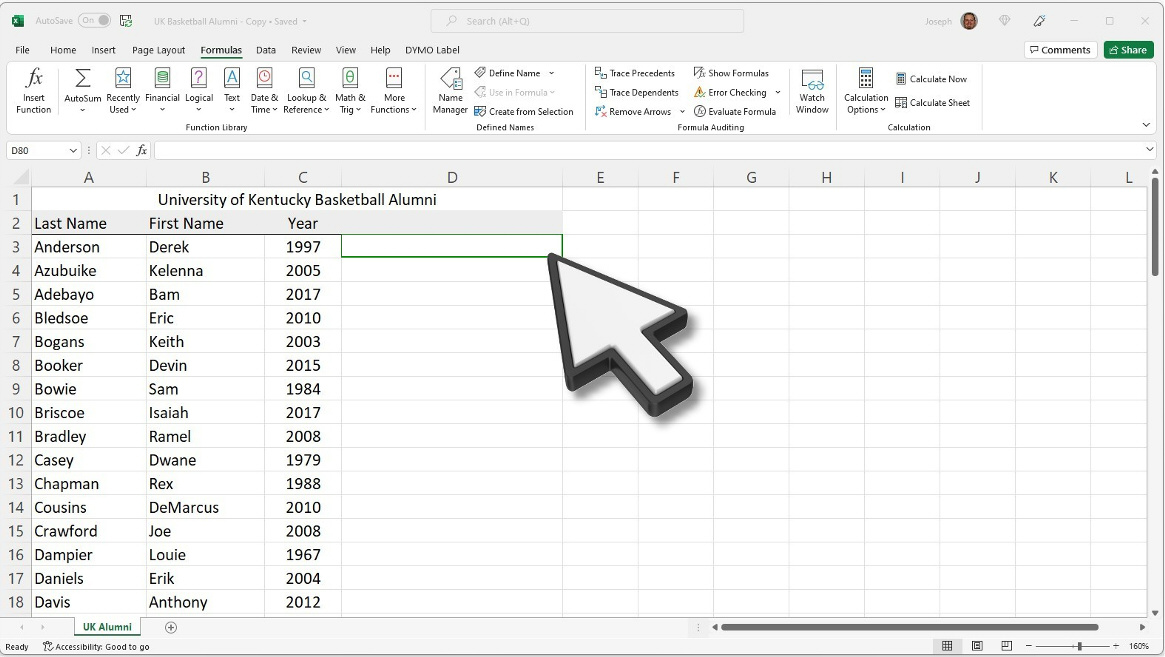
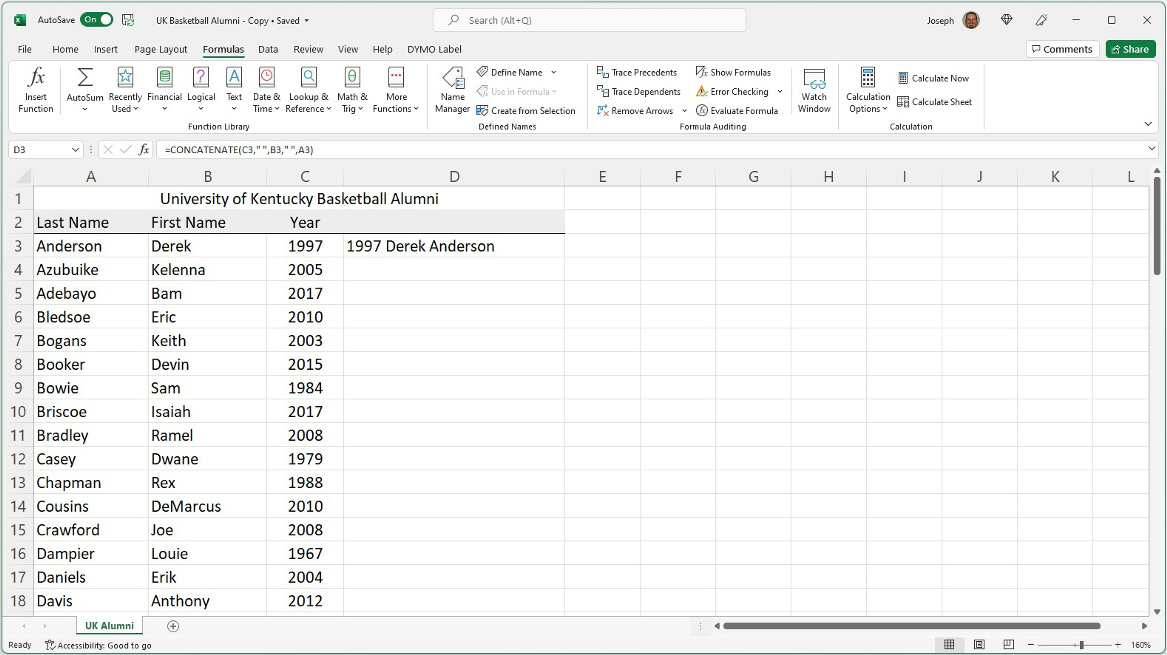
Step Three - Click on the cell (D3) that you would like the function results to be displayed.
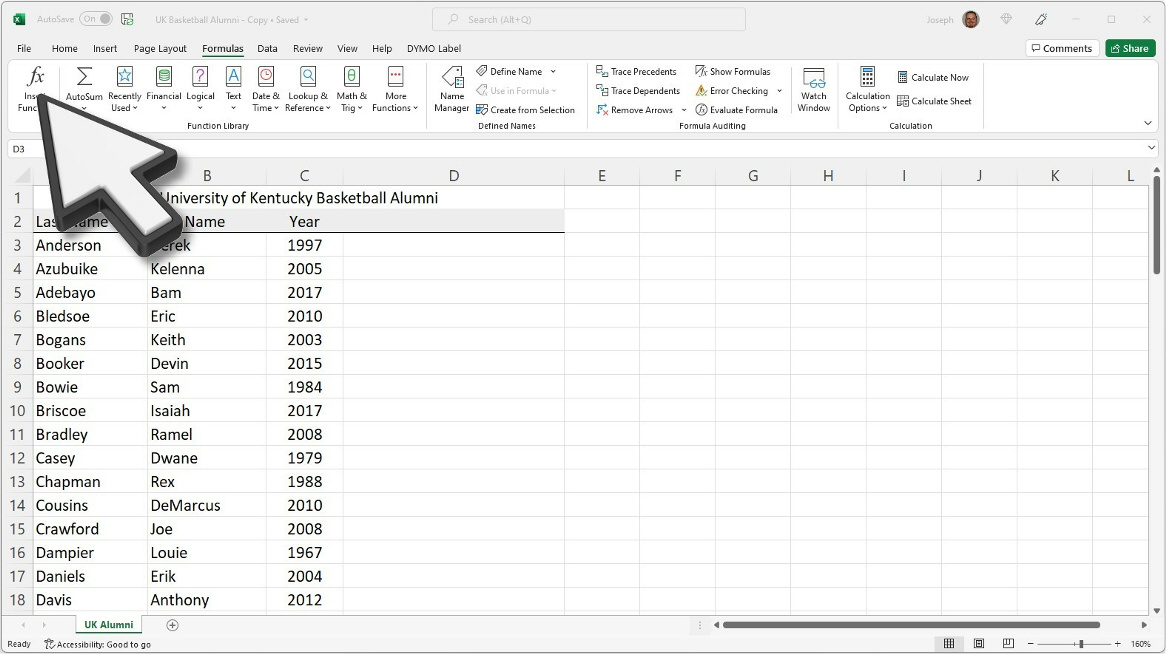
Step Four - Click Insert Function.
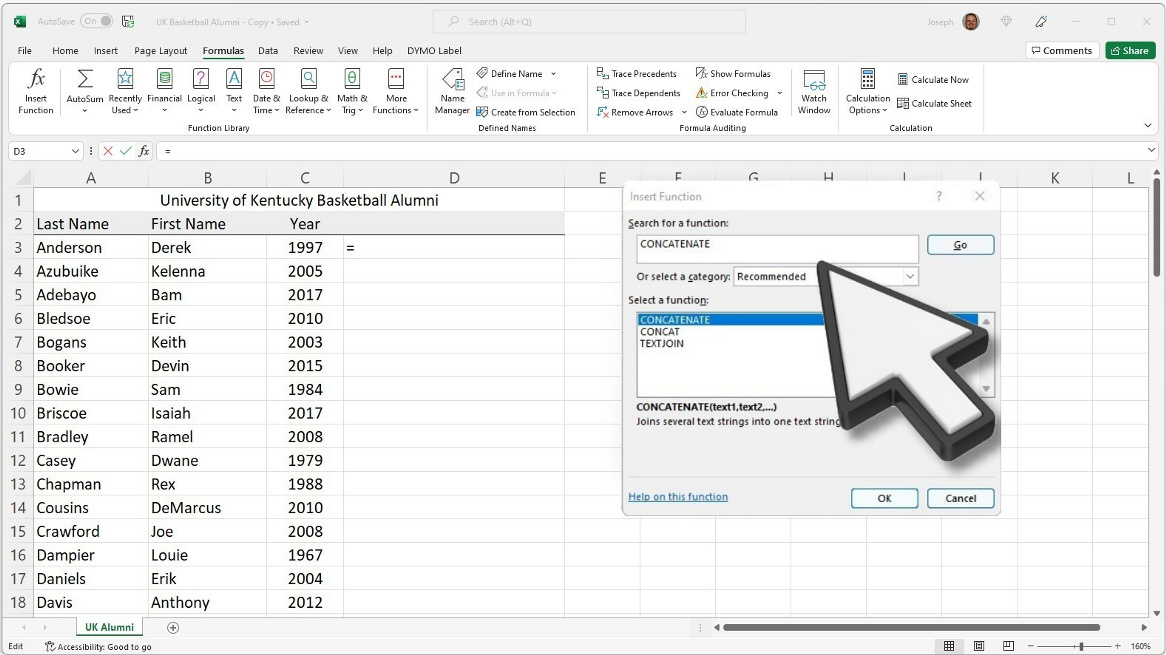
Step Five - Type in “CONCATENATE” in the “Search for a Function” text box.
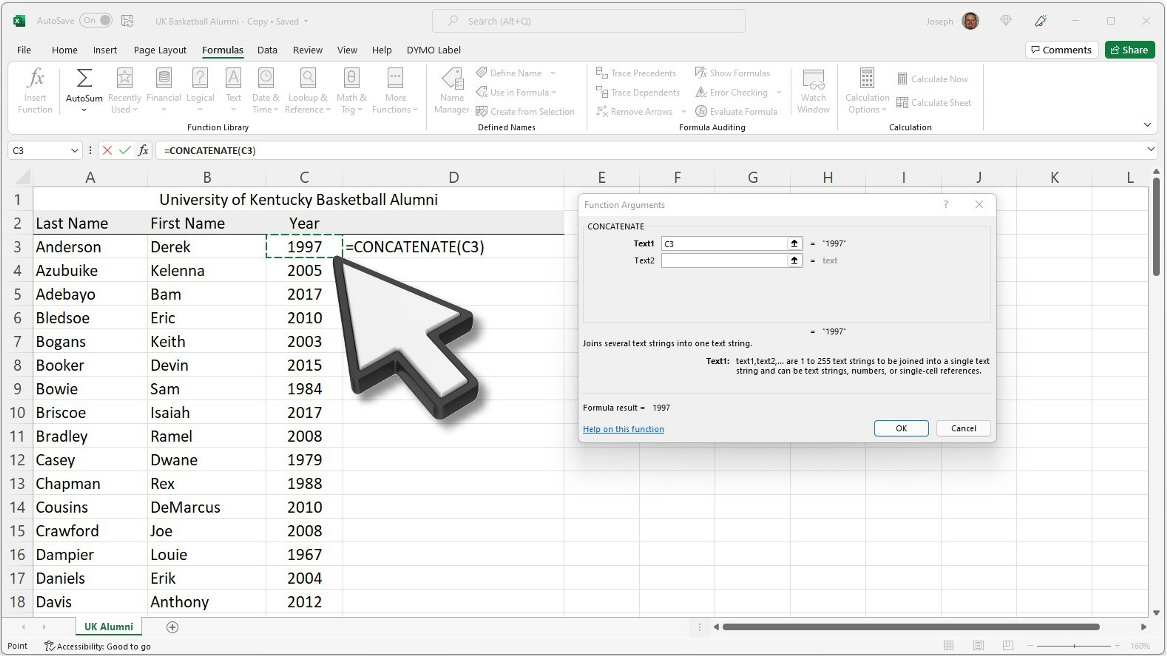
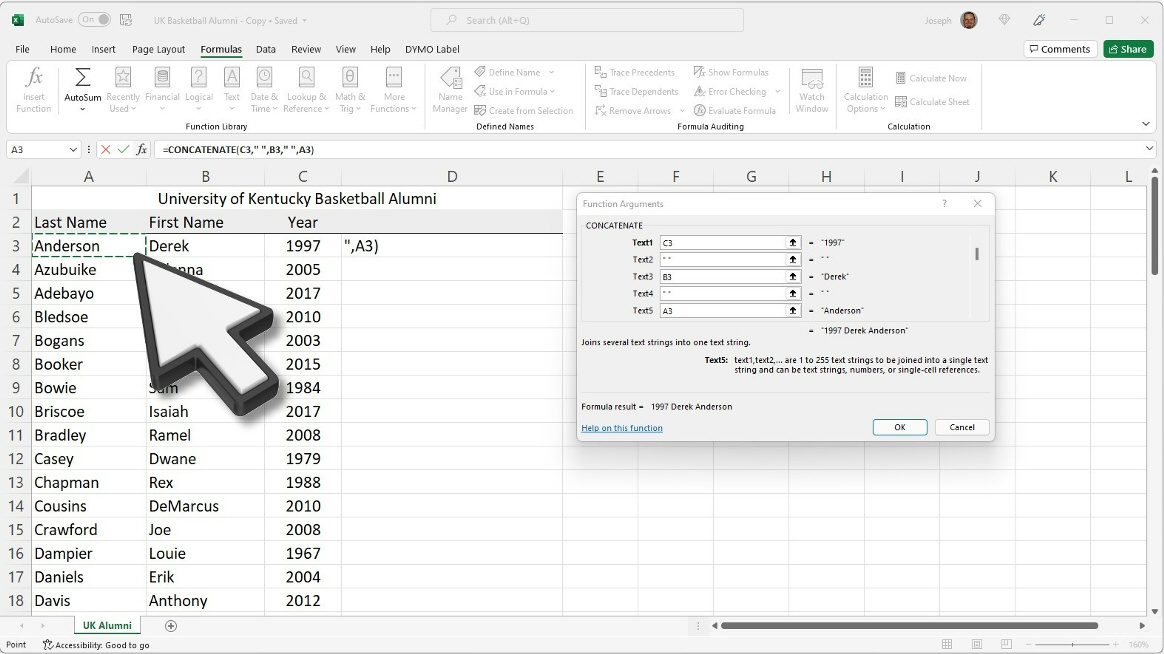
Step Six - Click the "TEXT1" text box and then click on cell (C3).
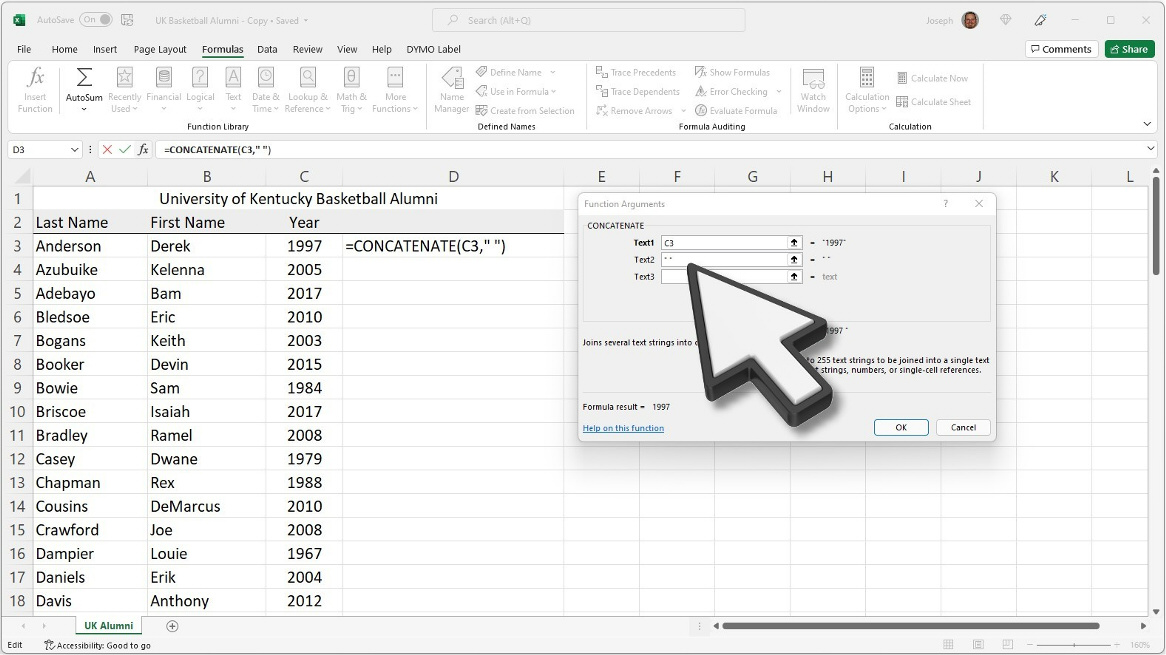
Step Seven - Click the "TEXT2" text box and add double quotation marks with a space between them.
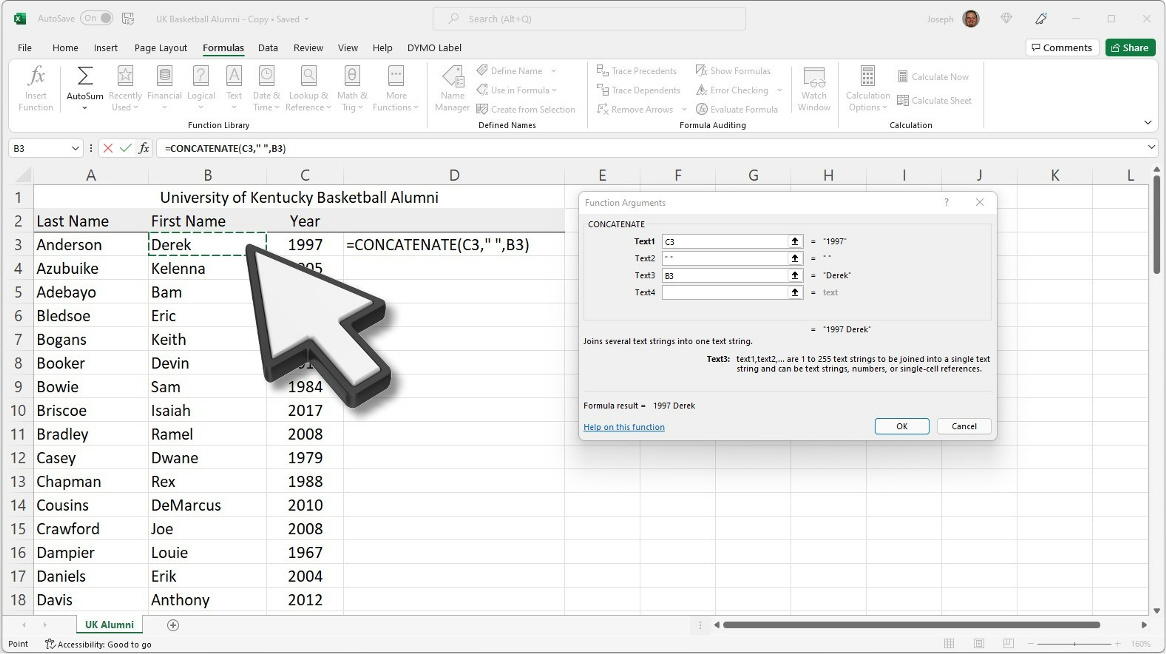
Step Eight - Click the “TEXT3” text box and then click on cell (B3).
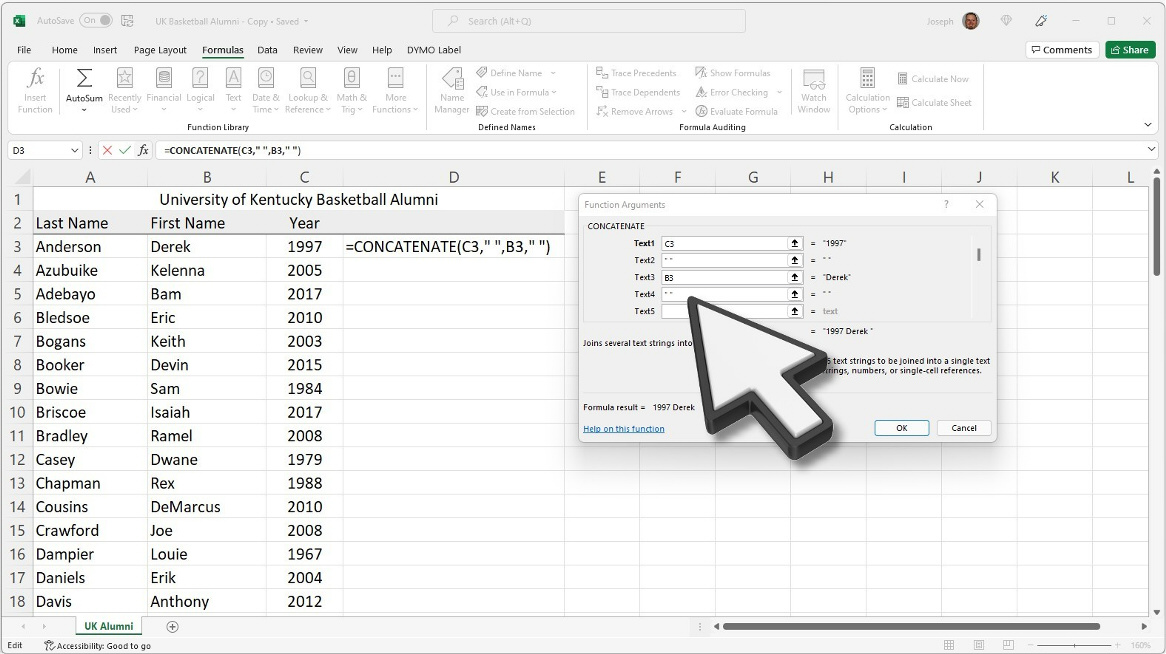
Step Nine - Click the “TEXT4” text box and add double quotation marks with a space between them.
Step Ten - Click the “TEXT5” text box and then click on cell (A3).
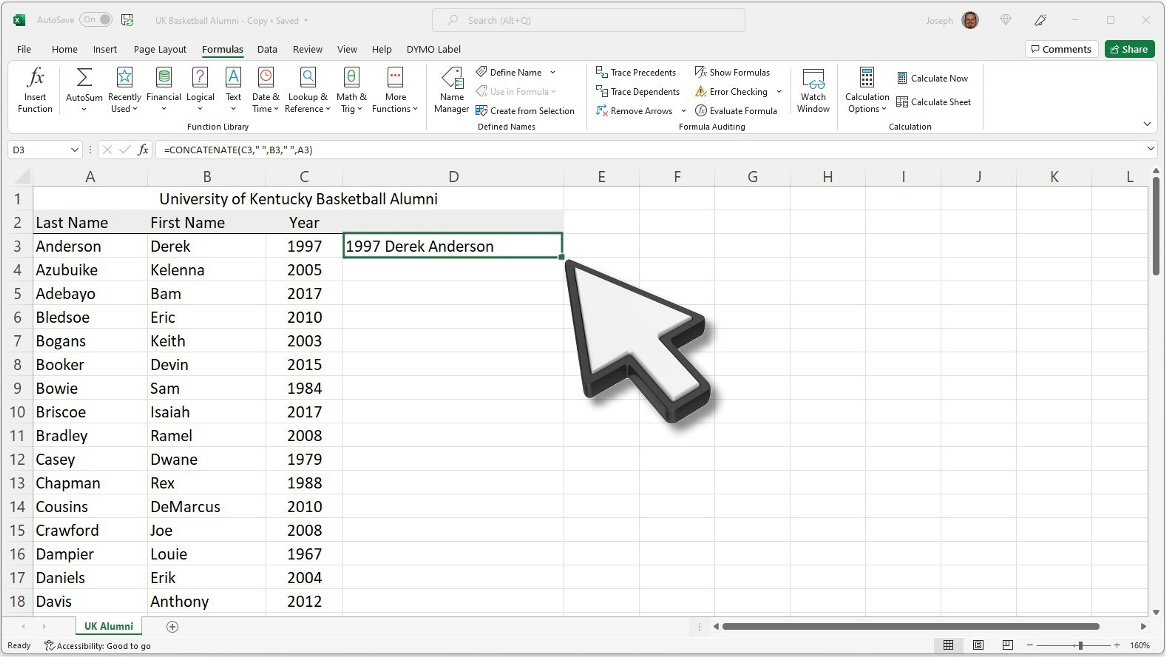
Step Eleven - Add the function to the entire document.
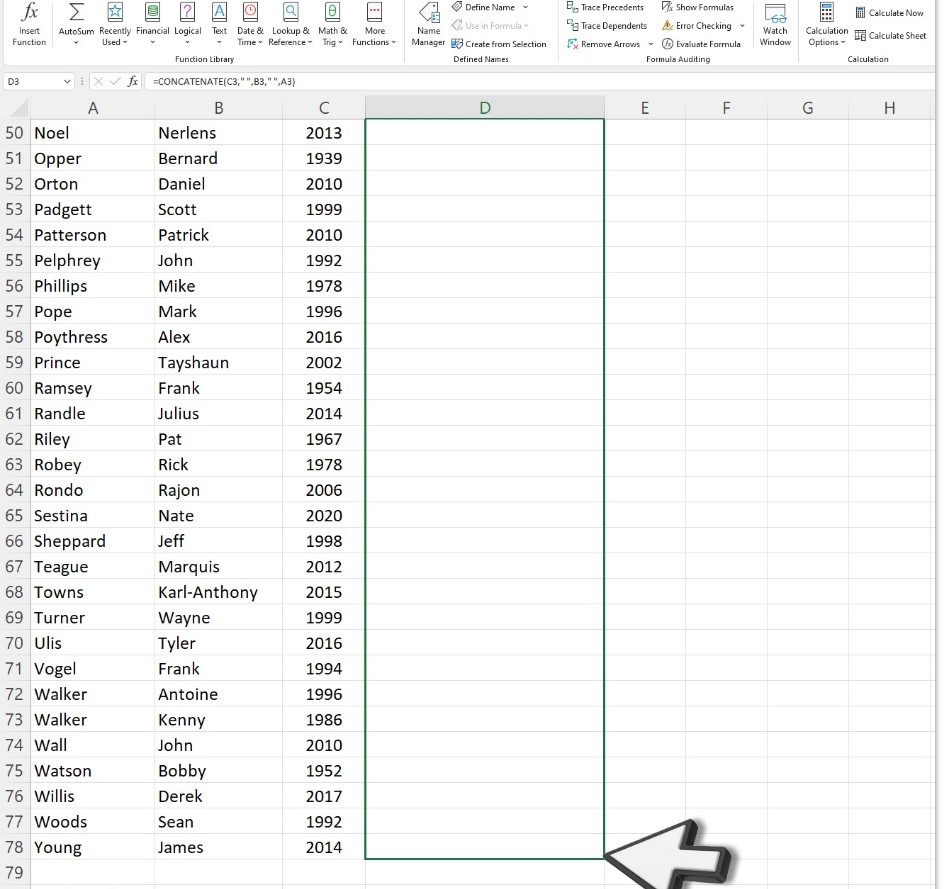
Step Twelve - Click (left mouse button) on the lower right corner of cell (D3), hold down the mouse button.
Step Thirteen - While holding down the "left" mouse button, drag the highlighted box to the last row containing data and then release the mouse button.
Step Fourteen - Bob's your Uncle
| . |